How to Fix APK Not Installing Error on Android Devices
Android users often face the APK not installing error while trying to install apps from third-party sources. This can happen due to multiple reasons such as corrupted files, outdated Android versions, or security settings. In this guide, we’ll show you how to fix APK not installing error safely and quickly.
1. Check Your Android Version
Some APKs are built for specific Android versions.
Solution:
- Go to Settings → About Phone → Android Version
- Check if the APK is compatible
- Update your Android if required
2. Enable Installation from Unknown Sources
If this option is disabled, APKs from third-party sites will not install.
How to Enable:
- Go to Settings → Security → Install Unknown Apps
- Select the app you downloaded the APK from
- Turn on Allow from this source
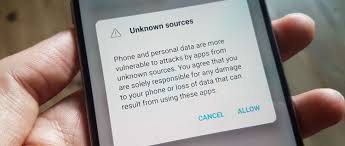
Remember to disable it after installation for security.
3. Clear Cache and Storage of Package Installer
Sometimes the Android Package Installer app causes errors.
Steps:
- Go to Settings → Apps → Package Installer
- Tap Storage → Clear Cache
- Try installing the APK again
4. Check APK File Integrity
Corrupted or incomplete APKs often fail to install.
Solution:
- Re-download APK from trusted sources
- Ensure file size matches the official version
- Scan the file with VirusTotal before installing
5. Avoid Conflicting Apps
If an older version of the app exists, it can block new installation.
Solution:
- Uninstall any existing version
- Clear residual files from /Android/data/ or /Android/obb/
- Retry installation
6. Ensure Sufficient Storage
APK installation requires free space.
Check:
- Go to Settings → Storage
- Delete unnecessary files
- Retry APK installation
7. Use a Different File Manager
Sometimes the default file manager causes installation failure.
Solution:
- Download a trusted file manager app like ES File Explorer
- Navigate to APK and tap install
8. Enable “Install Apps from Unknown Sources” in Play Protect
Google Play Protect can block some APKs.
Solution:
- Open Google Play Store → Play Protect → Settings
- Temporarily disable Scan apps with Play Protect
9. Restart Your Device
A simple restart often fixes many minor installation errors.
10. Final Tips for Safe APK Installation
- Always download from trusted APK sites
- Avoid modded or cracked APKs
- Keep Android system updated
- Use an antivirus app if possible
Conclusion
Fixing the APK not installing error is straightforward if you follow the right steps. By checking the Android version, enabling unknown sources, clearing the cache, and using trusted APKs, you can install your favorite apps safely.
This guide ensures safe installation while protecting your device from malware or errors.
If you want, I can also create a premium version for your website with:
- Step-by-step screenshots for each fix
- FAQ section targeting Google snippet
- Internal linking structure to other APK guides
This would make your post more likely to rank during the December 2025 core update.
Do you want me to make that enhanced version?

Yazar Hakkında
Sohail Abbas is a web developer and APK content researcher who provides accurate, safe, and up-to-date information about Android applications. His guides help users download and install APKs safely with full instructions and version details.