How to Install Inat Box APK on Firestick 2026 — Complete Step-by-Step Guide
Last Updated: June 2026 | Author: Sohail Abbas | inatboxplus.com
How to Install Inat Box APK on Firestick 2026 — Complete Step-by-Step Guide
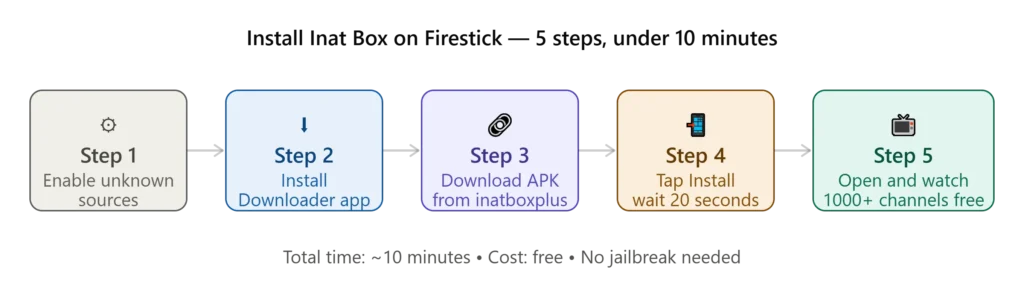
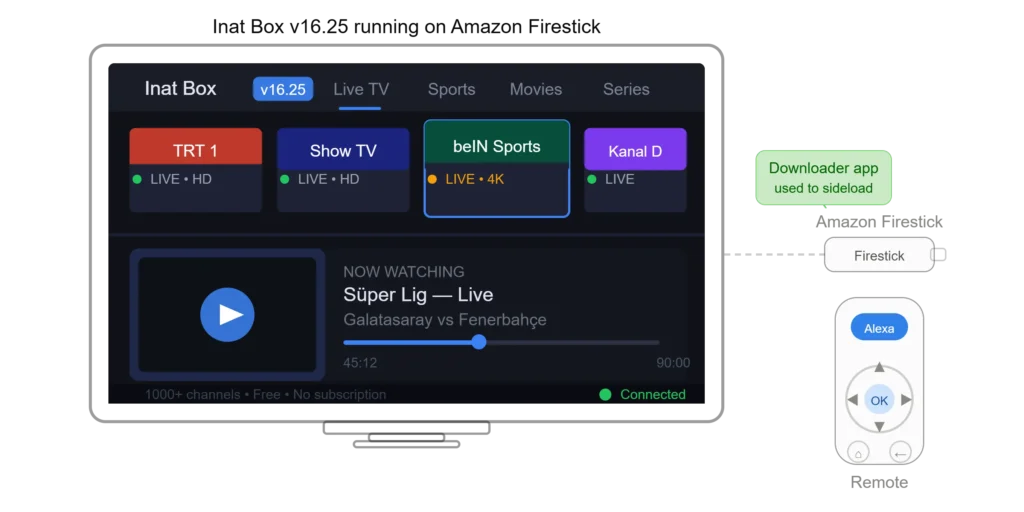
If you want to watch free live TV, Turkish channels, and live sports on your big screen, installing Inat Box APK on Firestick is one of the best decisions you can make in 2026. Amazon Firestick does not allow direct APK downloads from unknown sources by default — but with a few simple setting changes and the free Downloader app, you can have Inat Box up and running in under 10 minutes.
This guide covers everything: what you need before you start, how to enable the right settings, the exact steps to download and install Inat Box v16.25 on any Firestick model, best settings after install, and what to do if something goes wrong.
What You Need Before Starting
Before you begin, make sure you have the following ready:
- Amazon Firestick — any model works: Firestick Lite, Firestick 4K, Firestick 4K Max, Fire TV Cube, or Fire TV Stick (2nd/3rd gen)
- Active internet connection — Wi-Fi connection minimum 5 Mbps for smooth HD streaming
- Amazon account — needed to download the Downloader app from the Amazon App Store
- Inat Box APK download URL — you will need the direct URL from inatboxplus.com (copy it on your phone first, then type it on Firestick)
That is all. No paid tools, no subscriptions, no technical knowledge required.
Step 1 — Enable Apps from Unknown Sources on Firestick
By default, Firestick blocks installation of apps that are not from the Amazon App Store. You need to change one setting to allow Inat Box to install.
Here is how to do it:
- From your Firestick home screen, go to Settings (gear icon in the top menu bar)
- Select My Fire TV
- Select Developer Options
- Find “Install Unknown Apps” and click on it
- Find Downloader in the list (you may need to install it first — see Step 2)
- Toggle Downloader to ON
That is it. You only need to do this once. This setting tells Firestick that the Downloader app is allowed to install APK files on your device.
Note: On older Firestick models (2nd gen or earlier), the option may be called “Apps from Unknown Sources” under Developer Options. Toggle it to ON.
Step 2 — Install the Downloader App
The Downloader app is a free tool available in the Amazon App Store. It acts as a browser and file manager, letting you download APK files directly onto your Firestick.
Steps to install Downloader:
- From the Firestick home screen, go to the Search icon (magnifying glass) in the top left
- Type “Downloader” using the on-screen keyboard
- Select the Downloader app — it has an orange icon with a white arrow
- Click “Download” or “Get”
- Wait for it to install (usually 30–60 seconds)
- Open Downloader once installed
You will see a simple browser-style interface with an address bar at the top. This is where you will enter the Inat Box APK download URL in the next step.
Tip: Downloader is made by AFTVnews and has over 10 million downloads. It is completely safe and widely used by Firestick users worldwide for sideloading apps.
Step 3 — Download Inat Box APK Using Downloader
Now that Downloader is installed and Unknown Sources is enabled, it is time to download the Inat Box APK file.
- Open the Downloader app on your Firestick
- Click on the address bar at the top of the screen
- Using your Firestick remote, type the following URL exactly:
- Press Go or click the arrow button
- The inatboxplus.com download page will load in Downloader
- Scroll down to find the Download button for Inat Box APK v16.25
- Click the download button
- Downloader will ask where to save the file — click OK to save to the default location
- Wait for the download to complete — the 34 MB file usually takes 30–90 seconds depending on your connection speed
Once the download bar shows 100% complete, Downloader will automatically prompt you to install the file. Proceed to Step 4.
Alternative: If you have a short URL or a specific direct APK link from inatboxplus.com, you can type that directly into Downloader instead of navigating the page manually. This is faster if you noted the direct link on your phone first.
Step 4 — Install Inat Box APK on Firestick
After the download completes, Downloader will show an “Install” prompt automatically.
- On the install screen, review the app name: “Inat Box”
- Click “Install” using your Firestick remote
- Firestick will install the APK — this takes about 10–20 seconds
- When you see the “App installed” success screen, click “Open” to launch Inat Box immediately
Or click “Done” if you want to go back to the home screen first.
Tip: After installation, Downloader will ask if you want to delete the APK file. Click “Delete” to free up storage space — you no longer need the file since the app is already installed.
Step 5 — Set Up and Start Watching
When you open Inat Box for the first time on Firestick:
- The app will take 5–15 seconds to load and fetch the channel list
- You will see the main menu with categories: Live TV, Sports, Movies, Series
- Use your Firestick remote to navigate — the D-pad (ring button) works perfectly with Inat Box’s interface
- To find a specific channel, press the Search icon inside the app and type the channel name
- Click any channel to start streaming
For the best experience on Firestick, go to Settings inside Inat Box and set the default quality to 720p if your internet is below 10 Mbps, or 1080p HD if your connection is faster. This prevents buffering during peak hours.
Best Settings for Inat Box on Firestick
After installing, apply these settings for the smoothest experience:
Video Quality: Set to 720p for connections under 10 Mbps. Set to 1080p for faster connections. 4K is available on Firestick 4K Max with a 25+ Mbps connection.
Player Selection: Inside Inat Box settings, you can switch between the built-in player and MX Player. For Firestick, the built-in player works best as it is optimized for Fire TV hardware.
Buffer Size:1If you experience buffering, go to Settings → Playback → increase buffer size to Large. This pre-loads more content and reduces interruptions.
DNS Setting: If certain channels do not load, change your Firestick DNS to 8.8.8.8 (Google DNS). Go to Firestick Settings → Network → your Wi-Fi → Advanced → enter 8.8.8.8 as the DNS.
Auto-Start on Boot: In Inat Box settings, enable “Start on Boot” if you want the app to open automatically when you turn on your Firestick.
Common Firestick Problems and Fixes
Problem: “App not installed” error Fix: Make sure Unknown Sources is enabled for Downloader (Step 1). Then try downloading the APK again — the previous file may be corrupt.
Problem: Inat Box not showing in apps list Fix: Press and hold the Home button on your remote → select “Apps” → scroll right to find Inat Box. Or go to Settings → Applications → Manage Installed Applications.
Problem: Channels buffering constantly Fix: Lower video quality to 480p or 720p. Restart your router. Move Firestick closer to the router or use a Wi-Fi extender. Alternatively, use a VPN — some ISPs throttle streaming traffic and a VPN bypasses this.
Problem: App crashes on startup Fix: Clear app data: Settings → Applications → Manage Installed Applications → Inat Box → Clear Data. Then reopen the app.
Problem: Downloader cannot access inatboxplus.com Fix: This sometimes happens due to ISP restrictions in certain countries. Try using a VPN on your Firestick first, then open Downloader and access the site.
For a full list of solutions, visit our dedicated troubleshooting guide: ???? Inat Box Not Working? 8 Fixes That Work in 2026 →
Which Firestick Models Are Compatible?
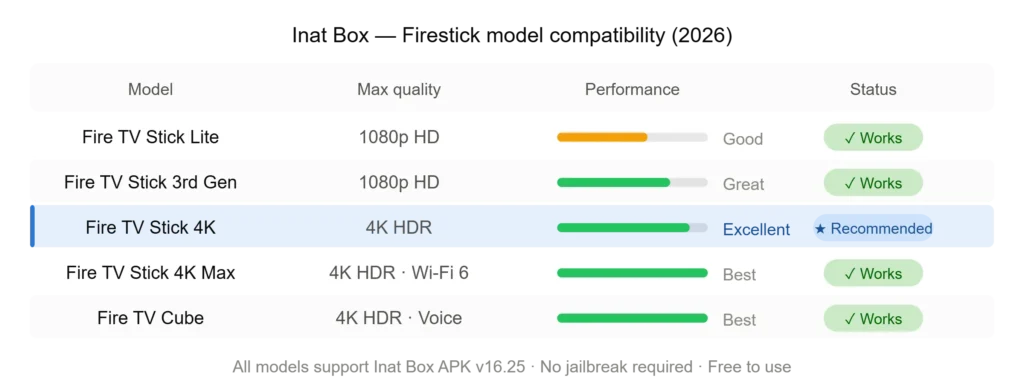
Inat Box v16.25 works on all current Amazon Firestick models:
| Model | Compatible | Notes |
|---|---|---|
| Fire TV Stick Lite | ✅ Yes | 1080p max, good for basic use |
| Fire TV Stick (3rd Gen) | ✅ Yes | 1080p HD, smooth performance |
| Fire TV Stick 4K | ✅ Yes | 4K HDR supported |
| Fire TV Stick 4K Max | ✅ Yes | Best performance, Wi-Fi 6 |
| Fire TV Cube (1st/2nd Gen) | ✅ Yes | Fastest Firestick, voice control works |
| Fire TV Cube (3rd Gen) | ✅ Yes | Top-tier performance |
| Old Fire TV Stick (1st Gen) | ⚠️ Limited | May lag on HD streams |
Frequently Asked Questions
Q: Is Inat Box free on Firestick?
Yes. Inat Box is completely free to download and use on Firestick. No subscription, no registration, and no payment of any kind is required.
Q: Do I need to jailbreak my Firestick?
No. Enabling Developer Options and installing Downloader is not jailbreaking. It is a standard Amazon-supported feature available on every Firestick. No warranty is voided.
Q: Can I use Inat Box on Fire TV (the actual TV, not stick)?
Yes. The installation process is identical on Fire TV smart televisions. Follow the exact same steps above.
Q: Will Inat Box appear in my Firestick home screen?
Yes. After installation, Inat Box appears under “Your Apps & Channels” on the home screen. Pin it to the top row for quick access: highlight the app → hold the Select button (center of remote ring) → choose “Move to front.”
Q: Is a VPN needed to use Inat Box on Firestick?
Not required, but recommended. A VPN improves streaming speed if your ISP throttles video traffic, and unlocks region-restricted channels. NordVPN and ExpressVPN both have dedicated Firestick apps.
Related Guides
- Download Inat Box APK v16.25 →
- Inat Box for Android TV 2026 →
- Inat Box Not Working? 8 Fixes →
- Complete Installation Guide (All Devices) →
Installing Inat Box on Firestick takes less than 10 minutes and gives you access to 1,000+ live channels, sports, movies, and Turkish series — all free, on your big screen. Follow the 5 steps above, apply the recommended settings, and you will be streaming in no time.
Updated: June 2026 | Version: v16.25 | inatboxplus.com